
Dashboard And Scan List
The dashboard is the operational view for all scans. Use it to find recent work, confirm whether a scan is still running, open issue details, and start follow-up actions.
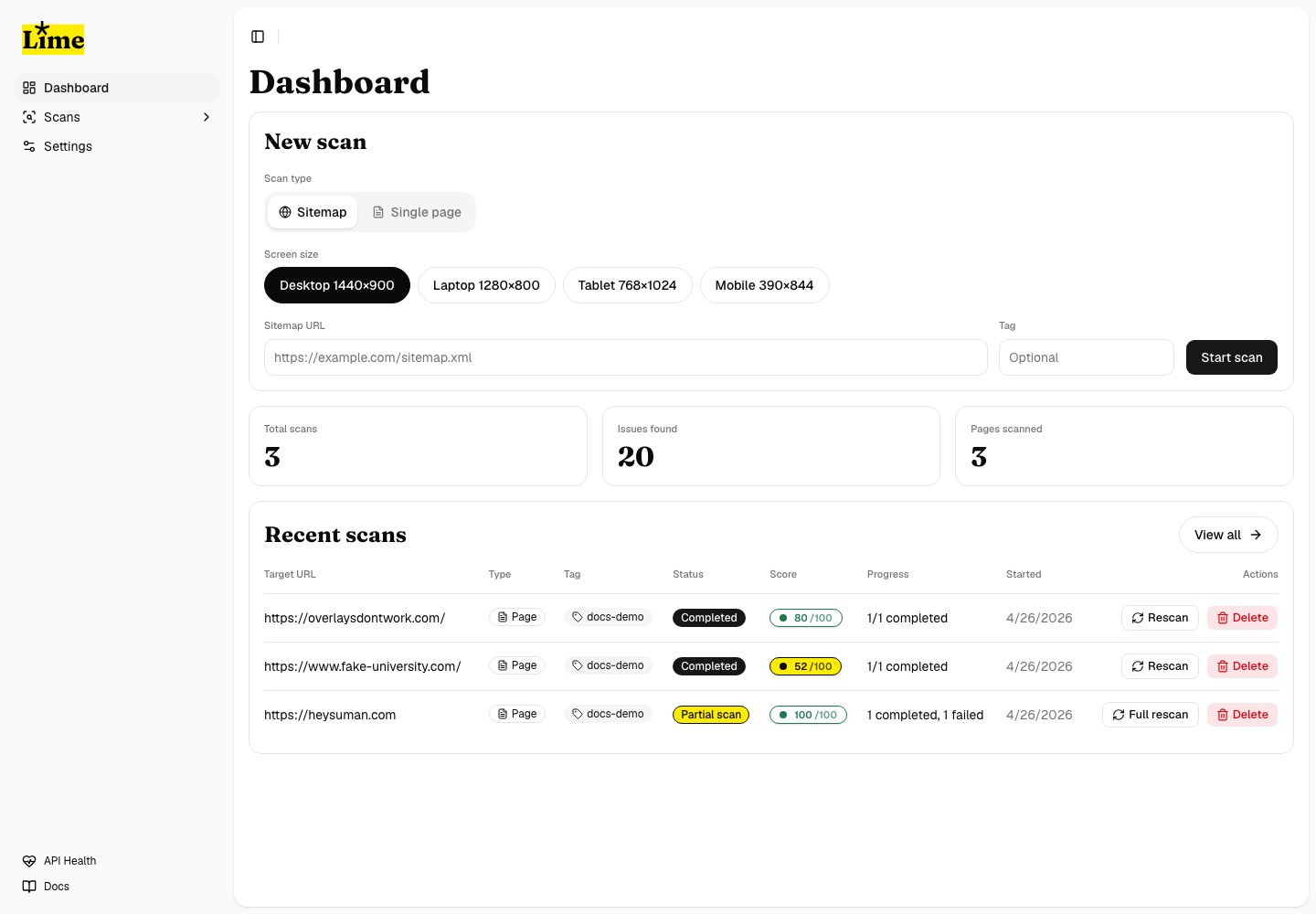
Read a scan row
- Check the target URL first. This tells you what host the scan belongs to.
- Check the status. Running scans are still changing; completed scans are ready for review.
- Check page coverage. A score is only meaningful when enough pages completed.
- Open the scan detail page for lifecycle and URL-level progress.
- Open Issues when you are ready to triage grouped findings.
Statuses
- Pending means the scan has been created or reopened and is waiting for work.
- Scanning means Shopkeeper is actively processing pending URLs.
- Paused means the scan was stopped cooperatively and can be resumed.
- Completed means all eligible URLs reached a terminal result.
- Partial means some URLs completed and some URLs failed.
- Failed means no useful page coverage was produced.
How to use score and coverage
- Treat score and coverage as a pair.
- Do not treat a partial scan score as final when failed pages remain.
- Retry failed pages from the scan detail page before exporting the final report.
- Use labels to compare the same site across release candidates, environments, or remediation passes.